HubSpot CRM Setup for B2B Sales Teams: The Complete Guide
Complete HubSpot CRM setup guide for B2B sales teams. Configure pipelines, contacts, and automation to close deals faster and never lose a lead.
Introduction
HubSpot has become one of the most popular CRM platforms for B2B teams — and for good reason. It’s powerful, flexible, and offers a genuinely useful free tier that lets small teams get started without a major investment. But “getting started” and “getting it right” are two very different things.
Most teams set up HubSpot in a few hours, enter some contacts, and then wonder why their reps aren’t using it six months later. The problem isn’t the tool — it’s that the setup wasn’t done with B2B sales workflows in mind.
This guide walks through a complete HubSpot CRM setup specifically for B2B sales teams: configuring your pipeline to match your actual sales process, setting up contact and company records the right way, building the automations that save your team hours each week, and avoiding the mistakes that make CRMs feel like more work than they’re worth.
HubSpot CRM Overview: What You’re Working With
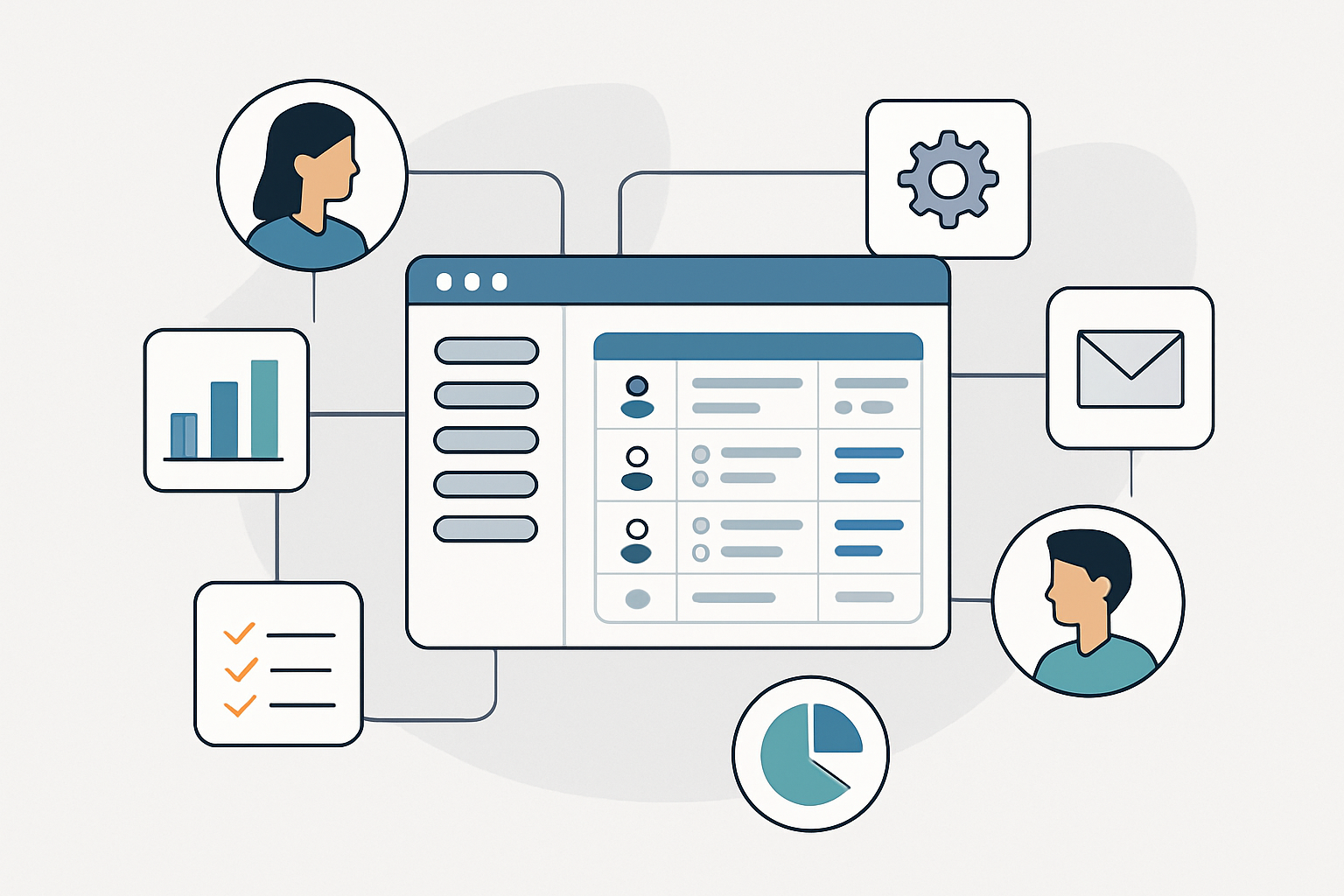
Before diving into setup, it helps to understand HubSpot’s core architecture. HubSpot organizes data around five main objects:
- Contacts — individual people (leads, prospects, customers)
- Companies — organizations that contacts belong to
- Deals — opportunities moving through your sales pipeline
- Tickets — support requests (less relevant for pure sales teams)
- Activities — calls, emails, meetings, notes, tasks
In B2B sales, the most important relationships are: a Deal is associated with one or more Contacts, and those Contacts belong to a Company. When a new lead comes in, you’ll typically create a Contact, associate them with a Company, and open a Deal to track the opportunity.
HubSpot Free gives you unlimited contacts, companies, and deals, with one pipeline. HubSpot Starter and above unlock multiple pipelines, sequences, custom reporting, and automation — tools that are essentially required for a real B2B sales operation.
Initial Setup Walkthrough
Step 1: Configure Your Company Settings
Start in Settings → Account Defaults. Set your company name, time zone, currency, and fiscal year. These seem minor, but they affect how reports display and how deal values are calculated.
Under Settings → Users & Teams, invite your sales reps and assign roles. HubSpot’s permission system lets you control what each user can see and edit — useful for keeping reps focused on their own pipeline without accidentally modifying others’ records.
Step 2: Build Your Deal Pipeline
Your deal pipeline is the backbone of your CRM. Navigate to Settings → Objects → Deals → Pipelines.
Most out-of-the-box pipelines don’t match how B2B sales actually works. Delete the default stages and build stages that reflect your real process. A typical B2B pipeline looks something like:
- New Lead — Just entered the CRM; not yet qualified
- Qualified — Confirmed budget, authority, need, and timeline
- Discovery Call Completed — Initial conversation done
- Proposal Sent — Formal proposal or quote delivered
- Negotiation — In active discussion about terms
- Closed Won — Deal signed
- Closed Lost — Deal lost (with a reason tracked)
For each stage, set a win probability — HubSpot uses this to calculate your weighted pipeline value. Be honest with yourself about what percentage of deals at each stage actually close. If “Proposal Sent” closes 30% of the time, set it at 30%.
If you run multiple distinct sales motions (for example, a self-serve SMB track and an enterprise track with a longer cycle), create separate pipelines for each.
Step 3: Customize Contact and Company Properties
Navigate to Settings → Properties to customize the fields on your Contact and Company records.
For B2B, the default contact properties miss a lot. Consider adding:
Contact properties:
- Seniority level (VP, Director, Manager, IC)
- Department
- Buying role (Decision Maker, Champion, Influencer, User)
- Lead source (how they first found you)
Company properties:
- Industry
- Employee count range
- Annual revenue range
- Technology stack (if relevant to your ICP)
- Ideal Customer Profile fit (Yes/No/Maybe)
Keep custom properties focused on information you’ll actually use for segmentation, routing, or reporting. Every unused field is friction for your reps.
Step 4: Set Up Email and Calendar Integrations
A CRM that doesn’t automatically log communications is a CRM your team won’t trust.
Under Settings → Integrations, connect:
- Gmail or Outlook — This installs the HubSpot Sales extension in your email client, letting reps log emails to CRM records with one click (or automatically). This is non-negotiable for rep adoption.
- Google Calendar or Outlook Calendar — Syncs meetings to Contact and Deal timelines automatically.
Once connected, go to Settings → Sales → Logging and configure which emails get logged by default. Most teams log all emails from contacts that exist in the CRM while excluding internal emails.
Step 5: Configure Lead Capture from Your Website
If you haven’t already connected your website to HubSpot, this is a critical step. Install the HubSpot tracking code on your website (available in Settings → Tracking & Analytics → Tracking Code). This single snippet:
- Tracks page views for known contacts automatically
- Enables HubSpot’s native form builder
- Powers live chat and chatbot functionality
For form capture specifically, you have two options: use HubSpot’s native forms, or connect your existing forms (WPForms, Gravity Forms, etc.) via the HubSpot plugin or an automation platform like Make.com. See our detailed guide on connecting your website to your CRM for step-by-step instructions on both approaches.
Step 6: Build Your First Automation Workflows
Automation is where HubSpot earns its keep. Navigate to Automation → Workflows to get started.
Start with these three workflows:
Workflow 1: New Lead Welcome Sequence
- Trigger: Contact is created AND Lead Source = Website
- Action 1: Send welcome email (personalized with first name)
- Action 2: Create task for assigned rep: “Follow up with new lead within 1 business day”
- Action 3: If no activity in 3 days, send follow-up email automatically
Workflow 2: Pipeline Stage Notifications
- Trigger: Deal stage changes to “Proposal Sent”
- Action: Send internal notification to deal owner with deal details
- Action: Create task: “Follow up on proposal in 3 days”
Workflow 3: Lead Scoring and Routing
- Trigger: Contact property “ICP Fit” = Yes AND email opened 3+ times
- Action: Assign contact to senior sales rep
- Action: Send internal Slack notification (via HubSpot + Slack integration)
These three workflows alone will save your team hours each week and ensure no lead goes cold.
Step 7: Set Up Sequences for Outbound
If your team does any outbound prospecting, HubSpot Sequences (available in Sales Hub Starter and above) are essential. Sequences are personalized, semi-automated email cadences that pause automatically when a prospect replies.
Navigate to Sales → Sequences and build your first outbound sequence. A standard B2B outbound sequence:
- Day 1: Personalized intro email
- Day 3: Follow-up with relevant resource
- Day 7: Short “bump” email
- Day 12: Final email with clear close or opt-out
Keep each email short (under 150 words), highly specific to the prospect’s industry or pain point, and end with a single clear call to action.
If you want to supercharge your outbound prospecting with a bigger contact database, consider pairing HubSpot with Apollo.io — 275M+ verified B2B contacts that integrate directly with HubSpot.
B2B-Specific Best Practices
Associate Contacts to Companies Religiously
In B2B, you’re selling to organizations, not individuals. Every contact should be associated with a Company record. This lets you see the full relationship — all the stakeholders at a target account, their interactions, and where deals stand — in one place.
HubSpot has an auto-association feature that links contacts to companies based on email domain. Enable it under Settings → Objects → Contacts → Company Association. It won’t catch everything, but it handles the bulk of cases automatically.
Use Deal Associations to Track Multiple Stakeholders
Enterprise B2B deals often involve multiple contacts at the same company. Associate all relevant stakeholders to the deal record: the economic buyer, the technical evaluator, the champion, and any blockers. When you have a call with any of them, log it against the deal, not just the individual contact.
Build a Clean ICP Filter
Create a filtered view in Contacts called “ICP Accounts” that shows only companies matching your ideal customer profile. This becomes your prospecting list and a quick sanity check on pipeline quality. If deals that don’t match your ICP keep making it to proposal, your qualification process needs work.
Measure What Matters
HubSpot’s default reports are generic. Build custom dashboards that track the metrics your team actually cares about:
- Pipeline velocity — how quickly deals move through each stage
- Stage conversion rates — what percentage of deals advance from each stage
- Lead-to-close time — total sales cycle length
- Revenue by lead source — which channels produce the most closed revenue
Review these weekly as a team. Pipeline reviews without data are guesswork.
Common Mistakes to Avoid
Mistake 1: Using HubSpot as a contact database instead of a sales tool HubSpot’s value is in its activity tracking, automation, and pipeline visibility. If your reps are just storing names and emails and nothing else, you’ve bought an expensive spreadsheet. Train your team on activity logging from day one.
Mistake 2: Building too many pipeline stages More stages doesn’t mean more clarity. If you have eight stages between “Qualified” and “Proposal Sent,” your reps will either skip stages or get lost. Keep it simple: five to seven stages is almost always enough.
Mistake 3: Skipping the email integration setup This is the single most common reason CRM adoption fails. If logging a call or email requires manual effort, reps won’t do it. The CRM will be empty, nobody will trust it, and it will get abandoned. Set up email and calendar integration before your first rep touches the CRM.
Mistake 4: Not cleaning up junk contacts Over time, test submissions, spam form entries, and unqualified leads accumulate. Run a monthly hygiene process to mark low-quality contacts, unsubscribe unresponsive leads, and archive dead deals. A clean CRM is a useful CRM.
Mistake 5: Never reviewing the setup Your sales process will evolve. Your pipeline stages should too. Review your HubSpot setup quarterly: are the stages still accurate? Are reps hitting snags that could be fixed with a workflow? Is the data you’re collecting actually being used? Treat the CRM as a living system, not a one-time setup.
Next Steps
With HubSpot set up properly, you have the infrastructure for a real B2B sales operation. The next question is usually how it compares to alternatives — especially Salesforce, which many enterprise buyers consider. For a detailed breakdown, see our Salesforce vs HubSpot comparison for B2B CRM guide.
And if you want end-to-end help implementing and optimizing HubSpot for your specific sales process, LeanB2BTools works with B2B teams on exactly this kind of CRM buildout.
Published by LeanB2BTools | leanb2btools.com
RECOMMENDED: FIND MORE LEADS
Pair HubSpot with Apollo.io
HubSpot manages your deals — Apollo.io fills your pipeline. 275M+ verified B2B contacts, email sequences, and outreach automation. Integrates directly with HubSpot.
FREE RESOURCE
Get the Free CRM Setup Checklist
The exact steps small B2B teams use to configure a CRM that reps actually use — pipelines, automations, and integrations included.
Who This Is For
This guide is for small B2B sales teams of 1–20 reps who have signed up for HubSpot (free or Starter) but haven’t configured it properly yet. If your reps are ignoring the CRM, if your pipeline data is unreliable, or if you’re running HubSpot like a glorified spreadsheet — this is for you. It’s not for enterprise teams with dedicated Salesforce admins. It’s for operators who need a working CRM without a six-month implementation.
Best HubSpot Setup Choice by Use Case
🏃 You’re starting from scratch
Use HubSpot Free. Set up one pipeline with 5 stages. Connect Gmail. Import your contacts. Get your first rep logging activities within 48 hours before adding any complexity.
📬 You’re doing outbound prospecting
You need HubSpot Starter ($20/month minimum) for Sequences. The free tier’s lack of sequences is the single biggest blocker for outbound teams. Pair it with Apollo.io for a full prospecting stack.
📊 You need reporting and forecasting
Move to HubSpot Professional. The custom reporting and deal forecasting tools are genuinely required for a sales team that reviews pipeline data weekly.
Common HubSpot Setup Mistakes to Avoid
- Skipping the email integration. If reps have to manually log emails, they won’t. Set this up before anyone touches a lead.
- Building 10 pipeline stages. More stages = more confusion. Five to seven stages is almost always enough. You can always add later.
- Importing a dirty contact list. Clean your CSV before import. Junk contacts destroy CRM trust faster than anything else.
- Treating the CRM as done after setup. Review your pipeline stages quarterly. Your sales process will evolve — your CRM should too.
Related Reading
↑ Part of our CRM guide library — see all CRM guides.