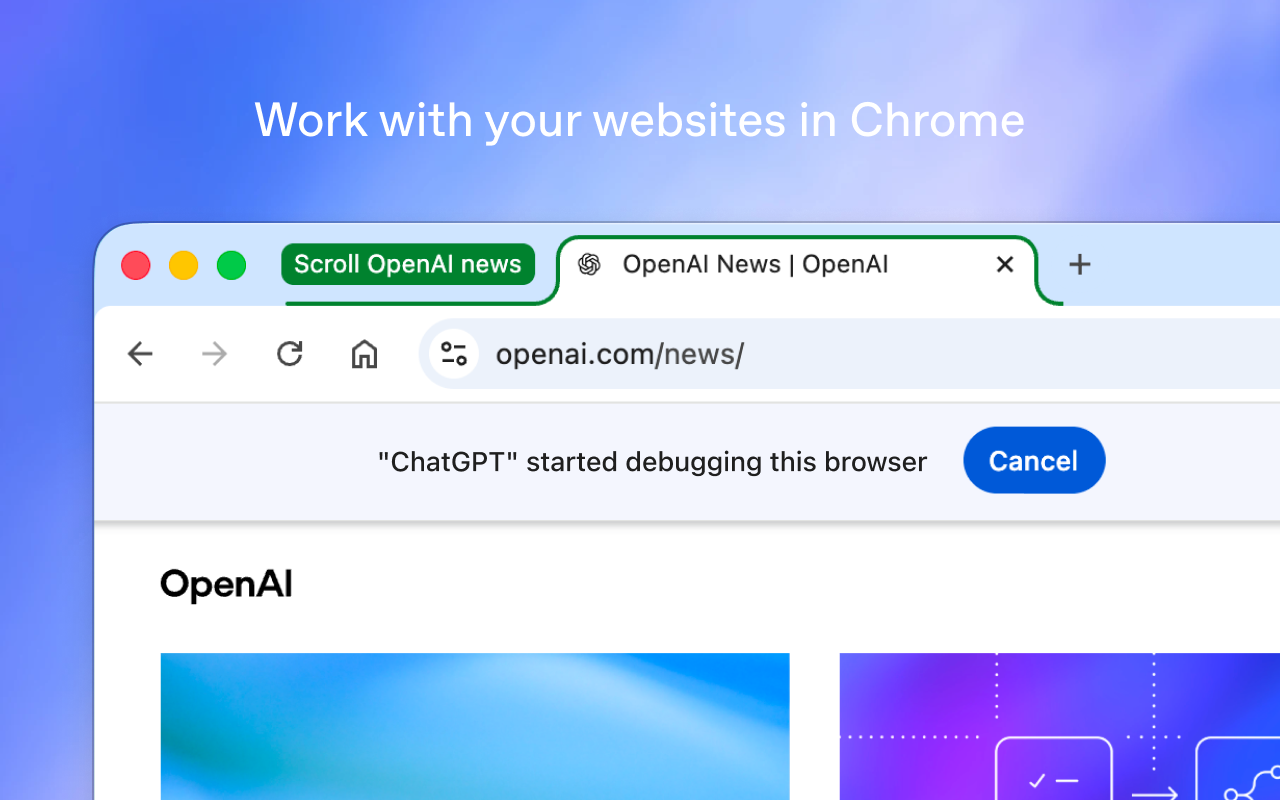
Somewhere in your business, a smart person spends Friday afternoon copying numbers from one screen into another. Prices into a distributor’s portal. Quote lines into a customer’s procurement site. Receipts into the expenses system. On 15 October OpenAI said ChatGPT can now do that in Chrome, on every ChatGPT plan.
The update brings what OpenAI calls “computer use” to anyone with Chrome. In Chat, ChatGPT reads across your open tabs. In Work, it acts in them: it clicks, types, fills forms and moves files, in the background, while you keep browsing. I’m skipping the feature tour. Here are three ways to turn browser admin into money. Prices below are my suggestions, not quotes or market rates.
Image: OpenAI, from the official ChatGPT Chrome Web Store listing
Play 1: Sell catalogue loading at $1,200 a catalogue
The money: every manufacturer and wholesaler that sells through distributors has the same chore. Each distributor wants the product range loaded into its own supplier portal, field by field, with its own category names. Then the supplier’s own website needs them again. Nobody in the business wants the job. OpenAI’s own listing says the extension does “data entry into any record system”, naming inventory systems and website CMSs. That’s this job.
How I’d run it:
- Install the ChatGPT extension in Chrome and sign in. Log into the portal yourself, with the client’s supplier login, in one tab. Close everything else.
- Attach the client’s price list or spec sheet to the chat, switch to Work and type: “Using the attached price list, create a new product in this portal for each row. Map our Category column to the closest category in their dropdown. Use the Description column for the short description. Save each product as a draft and don’t publish anything. After every ten, give me a list of what you entered and anything you weren’t sure about.”
- Check the first five drafts by hand against the spec sheet: price, unit, pack size. Fix the prompt, then let it run.
- Before you publish, spot-check one in five, then hit publish yourself.
- First buyer: any supplier whose products look half-loaded on a distributor’s site. Offer: “Your new range in your distributors’ portals and on your website within a week. $1,200 for up to 150 products, $8 a product after that.”
The maths, as an example: three catalogues a month is $3,600. Each one is about a day of your time, and most of that day is checking, which is exactly the part you’re being paid for.
Play 2: Get your quote into the customer’s portal the same day
The money: mines, councils, hospitals and big manufacturers don’t want your nice PDF. They want every line re-keyed into their procurement portal: part number, description, unit price, lead time, Incoterms. So the quote is “done” on Tuesday and actually submitted on Friday, when someone finds two spare hours. A buyer comparing five suppliers doesn’t wait for the slow one.
How I’d run it:
- Open the RFQ response page in the customer’s portal, logged in as you. Attach your finished quote PDF to the chat.
- In Work, type: “Fill in this RFQ response using the attached quote. Match each line by part number. Enter unit price, quantity, lead time in weeks and our standard warranty from page 2. If a line in the RFQ has no match in the quote, leave it blank and list it for me. Do not click Submit.”
- Read the summary it gives you, then check every price and every blank line on screen against the quote. Prices are where a confident tool can be confidently wrong.
- Press Submit yourself, the same day the quote was finished.
The maths, as an example: if portal entry takes your coordinator 90 minutes a quote and you submit six a week, that’s nine hours a week back. The bigger number is speed: win one extra $40,000 job a year by being first instead of last, and it has paid for itself many times over.
Play 3: Kill the Friday expenses job
The money: OpenAI lists “file expenses” and timesheets among the extension’s jobs. If you run field techs or salespeople, someone in the office turns a pile of receipt photos and job numbers into entries every week. Call it four hours of an office manager at $45 an hour.
How I’d run it:
- Have the team drop receipts into one shared folder, with the job number in the file name.
- Open your expense or timesheet system in one tab, attach the week’s receipts and type: “Create one expense claim for each receipt. Use the date, supplier and total from the receipt, the job number from the file name, and the category Fuel, Parts, Meals or Travel. If a receipt is blurry or has no job number, skip it and list it. Save as draft, don’t submit.”
- The office manager approves the drafts in one pass and chases the skipped ones.
The maths, as an example: three of those four hours saved, at $45, over 48 weeks is about $6,500 a year. That’s before anyone counts the receipts that used to go missing.
How I’d actually do it
Start with Play 2. It’s your own money, it’s on the table every week, and being first into the portal is a real edge. Play 1 is the one to sell, once you’ve seen how often it needs a human eye.
What to ignore for now: Chat mode reading your tabs is handy, but nobody pays you for a summary. The “test and validate websites” job on OpenAI’s list is for web developers, not most of us.
The honest caveats. OpenAI says the extension is on all plans, but how much Work you get varies by plan, so check yours before promising a client anything. The listing sat at 1.9 out of 5 from about a thousand ratings when I checked, so expect rough edges. Keep it to the tabs it needs, close banking and payroll tabs first, and never let it press Submit, Pay or Publish. Some customer portals forbid automated entry in their terms, so read them.
Where this fits
For an AI that works while you sleep, read my take on OpenAI’s always-on dots. For the quote PDF or tender pack itself, see what Claude now makes.
What shipped, for reference: on 15 October 2026 OpenAI updated the ChatGPT Chrome extension to bring computer use to Chrome. Chat reads your open tabs; Work acts in them (data entry, forms, expenses, bulk downloads, website testing) in the background, asking permission before using your history or moving files. OpenAI says it’s available on all ChatGPT plans. It also runs in Edge, Brave and Opera.
Source: OpenAI, ChatGPT extension on the Chrome Web Store, and @ChatGPT on X, 15 October 2026.